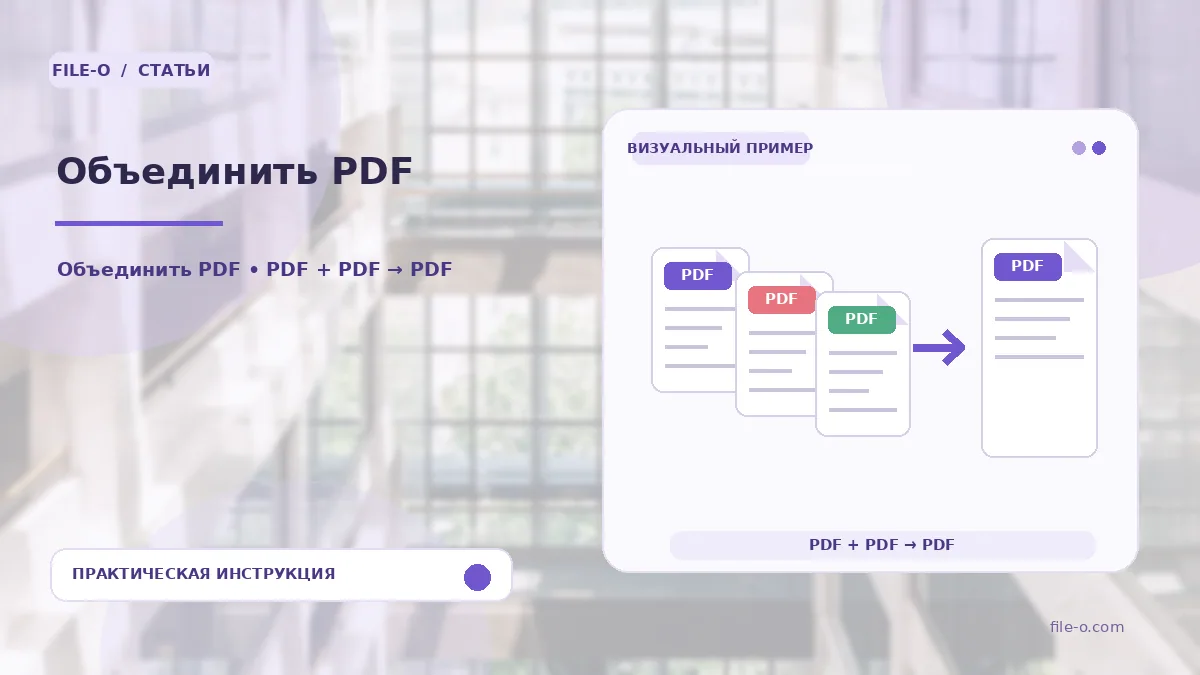
The tool combines several files into one multi-page PDF document. You can combine pages from different PDFs and also add individual images in JPG or PNG formats. All processing happens locally in your browser, and the source files are not uploaded to the server. The output is a single file with the pages arranged in the exact order you specified.
When this is useful
Suppose you need to assemble scanned pages of a contract, saved as separate JPG images, into one file to send to a counterparty as a single document. Another example is needing to merge several PDF reports from different company departments into a consolidated document for an archive or presentation, while maintaining the original quality of each page.
Step-by-step instructions
- Click on the upload area and select at least two files: these can be PDF documents, JPG, or PNG images.
- After uploading, drag and drop the files in the list to set the correct sequence of pages in the future merged document.
- Once you are sure the order is correct, click the button to start the merging process.
- Wait for the processing to finish and download the ready PDF file to your device.
How to verify the result
Open the resulting PDF and scroll through it from beginning to end to make sure all pages are in place and in the correct order. Check that the page orientation is not distorted, especially if you merged files with different landscape and portrait orientations. Ensure that no page is missing or corrupted by opening a few of them for detailed viewing.
Important limitations
If any of the source PDF files are password-protected, they must be unlocked beforehand using another tool before merging. Merging files that contain a qualified electronic signature may invalidate such a signature, as the document's structure will be altered. When working with a very large number of files or extremely large files on mobile devices, there may not be enough RAM.